Advanced Search Tips
Boolean Syntax: AND, OR, NOT
In the vast digital landscape, search engines serve as our trusty guides, helping us navigate through the sea of information. But how do we ensure that our queries yield precise and relevant results? Enter the Boolean operators “AND” “OR”, and “NOT”, are simple yet potent tools that enhance our search prowess.
“AND” Boolean Operator
Why Use Boolean Operators “AND”?
Precision: By combining terms, you filter out
irrelevant
noise. Imagine searching for “climate change” AND “policy.” You’ll get resources that
address
both aspects.
Efficiency: No more sifting through unrelated content. AND narrows down the results, saving
you
time.
Customization: Tailor your searches to your specific needs. Want articles on “AI” AND
“ethics”?
AND delivers.
What is the Boolean Operator “AND”?
The AND operator acts as a connector, binding multiple search terms together. When you use
AND in your query, the search engine retrieves results that contain all the specified terms.
It’s like assembling puzzle pieces: each term contributes to the complete picture.
Example: “AND” in Action
Let’s say you’re researching “machine learning” AND “healthcare.”
The search engine will fetch articles where these two worlds intersect.
Precision achieved!

What is the Boolean Operator “AND”?
The AND operator acts as a connector, binding multiple search terms together. When you use
AND in your query, the search engine retrieves results that contain all the specified terms.
It’s like assembling puzzle pieces: each term contributes to the complete picture.
Example: “AND” in Action
Let’s say you’re researching “machine learning” AND “healthcare.”
The search engine will fetch articles where these two worlds intersect.
Precision achieved!
The Power of the OR Operator in Search Queries
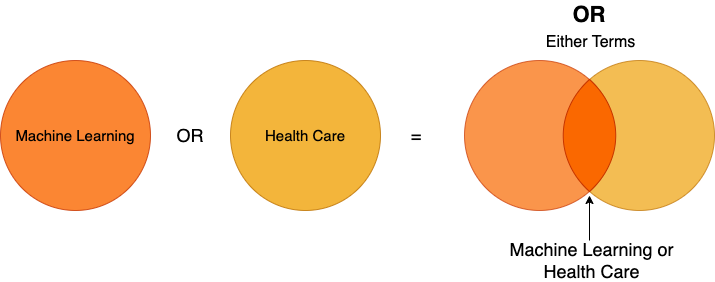
When we embark on a quest for information in the vast digital realm, search engines become our trusty companions. But what if we want to cast a wider net, exploring multiple possibilities simultaneously? Enter the OR operator—a versatile tool that expands our search horizons. AND delivers.
What is the OR Operator?
Why Use “OR”??
1.Inclusivity: By combining terms with OR, you broaden your search. Imagine looking
for
articles on “AI” OR “machine learning.” You’ll get resources related to both.
2.Exploration: It allows you to explore diverse angles. Want information on “climate
change”
OR
“renewable energy”? OR delivers options.
Remember, the OR operator isn’t exclusive—it invites variety and flexibility into your search journey. So next time you query, think of it as your passport to a richer information landscape!
The NOT Operator: Unleashing Precision in Search Queries
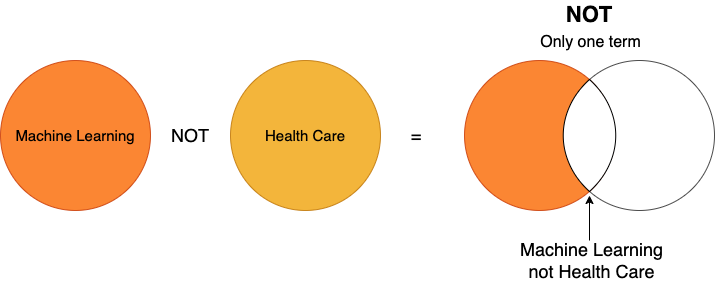
TIn the intricate web of information, sometimes we seek to exclude certain aspects from our
search results. Enter the NOT operator—a digital scalpel that allows us to carve out precisely
what we want.
What is the NOT Operator?
Why Use “NOT”?
1.Refinement: By excluding terms, you fine-tune your search. Imagine looking for
“polar
bears” NOT “climate change.” You’ll get resources solely about polar bears.
2.Exclusion: It helps you avoid irrelevant content. Want recipes for “chocolate cake”
NOT
“gluten-free”? NOT delivers the decadence you crave.
Remember, the NOT operator empowers you to sculpt your search results with precision. So next time you query, think of it as your digital chisel!
Proximity Syntax: Use w/s or w/p to find terms that are in the same sentence w/s or same paragraph w/p. For example: "airline w/s merger", your results will provide these terms with either term first, these connectors do not specify word order. You can use the pre/n command to define the order that your search terms are found. This can be critical for searching names. For example, Bill pre/3 George will find Bill within 3 words of George and Bill has to be written in the document first.
Spelling Syntax: When entering a search phrase, you can use up to seven question marks (?) to replace a letter in a word, as long as it’s not the first letter. Think of a question mark as the blank tile in Scrabble®. A search using “Bernst??n” will return content that contains words like Bernstein, Bernstien, and Bernstown. You can also use an exclamation point (!) or asterisk '*' to replace an infinite number of letters following a word root. Let’s say you wanted to conduct a broad search into news archives for stories regarding insurance. A search using “insur!” would return content which contains words like insure, insured, insurance, insuring, and so on.
Search Specific Elements of Article Content: As opposed to searching entire documents, advanced search makes it possible to search specific parts of the indexed articles. A searcher can decide to search for articles written by an author by specifying the name of the author and searching the author field. This broadens the scope of the search, enabling users to find relevant information across various aspects of the database. This feature allows users to searchfilter their query by Title, Abstract, Keywords, Journal Title, Author’s Name, Research Area, Author’s Affiliation, Author’s Country, Funder’s Name and Ab+Title+Key etc.